Core Concepts
SoundDesk Core Concepts and Signal Flow: channels, busses, aux sends, master.
The Desk
A desk is a saved SoundDesk configuration: a snapshot of every channel, bus, aux send, plugin, and routing choice. Keep one desk file per scenario ("Podcast", "Live Stream", "Band Rehearsal") and switch by opening the matching file.
See also: File Types & Recording.
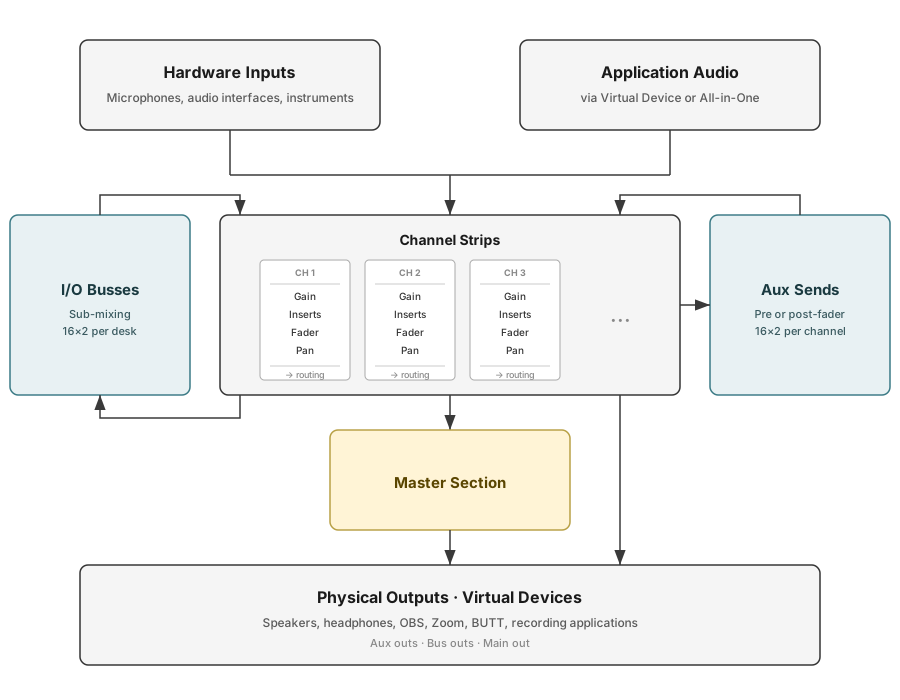
Desk Signal Flow Diagram:
Channels
A channel is a single audio path through the desk: one strip on the console, dedicated to one source. Audio enters at the top and exits at the bottom; each stage in between can shape the signal.

Each channel has two paths leaving it:
Main A/B output — the two output sides (Left and Right). Each routes independently to the Master Section, an I/O bus, or an interface output.
Aux sends — up to 16 copies of the signal (stereo), each sent to a separate destination.
See Channel Overview for the full per-channel reference.
I/O Busses
An I/O bus is a numbered internal route between channels. Any channel can send its output to a bus, and any other channel can be set to receive its input from that bus. The receiving channel (the bus receiver) has its own fader, plugins, pan, and routing, so it acts as a smaller master for the group of channels feeding the bus. SoundDesk provides 32 I/O busses per desk, used in stereo pairs (Bus 1+2, Bus 3+4, …) for stereo sub-mixes, or singly for mono. See Channel Overview: Audio I/O for the per-channel routing controls and bus rules.
Because the bus receiver is just another channel, its output routes anywhere a normal channel can: a physical output, a virtual cable, or the master. This is how a stem can be sent to a recorder independently of the streaming mix that goes to the master.
Worked Example — Drum Sub-Mix
Setup:
- Channel 1 — Kick microphone (Mono).
- Channel 2 — Snare microphone (Mono).
- Channel 3 — Overhead microphone (Mono or Stereo).
- All three drum channels should share a single compressor and a single group fader.
Routing:
- On each drum channel, change the A and B outputs from Master to a stereo bus pair. For example, A → Bus 1 (Left) and B → Bus 2 (Right). All three channels now feed the same Bus 1+2 pair.
- Take a free channel strip and set its A and B inputs to Bus 1 and Bus 2. This is the Drums bus receiver: it now carries the combined drum sub-mix. Place a compressor in one of its insert slots, and the compression applies to the whole drum group rather than to each channel individually.
- Set the bus receiver's outputs to the Master Section. Its fader now controls the entire drum group; the individual drum channels' faders still set the internal balance within the group.
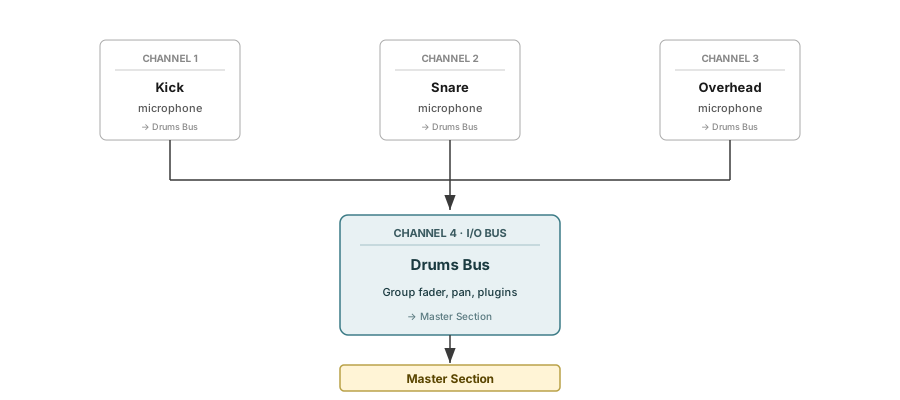
The individual channels still exist underneath the bus, each with its own fader and plugins. The same pattern works for vocal groups, stem mixes for recording, side-chain sources, and any other group that benefits from shared processing.
Aux Sends
An aux send ("auxiliary send") is a tap on a channel: a copy of the signal is split off and sent to a separate destination, while the original continues through the channel's main path. Each send has its own level control, independent of the main fader. Each channel provides 16 aux sends with stereo A/B routing.
The choice of pre or post-fader determines what the copy reacts to:
Pre-fader — the send is taken before the channel fader, so the aux receives the same level regardless of fader position. Used for performer monitor mixes: a singer's headphone mix should not drop when the vocal is pulled down in the audience mix.
Post-fader — the send is taken after the channel fader, so the aux level follows the fader. Used for effects sends: when a vocal fades out, its reverb should fade with it, not hang on alone.
Worked Example — Two-Host Podcast
Setup:
- Channel 1 — Host A's microphone (Mono).
- Channel 2 — Host B's microphone (Mono).
- Both vocals share a reverb. Each host hears themselves and the other host in their own headphones.
Routing:
- Create an Auxiliary Receiver 1&2 channel "Reverb Return" with a reverb plugin. Feed both microphone channels to it via post-fader aux send 1&2. Lowering a microphone fader now also lowers its reverb contribution.
- Create two auxiliary receiver channels: Host A Cans (Auxiliary Receiver 3&4) and Host B Cans (Auxiliary Receiver 5&6). Feed both microphone channels to them via pre-fader aux send 3&4 (to Host A Cans) and pre-fader aux send 5&6 (to Host B Cans). Route each receiver to its own physical headphone output. The show can be mixed freely without changing what the hosts hear.
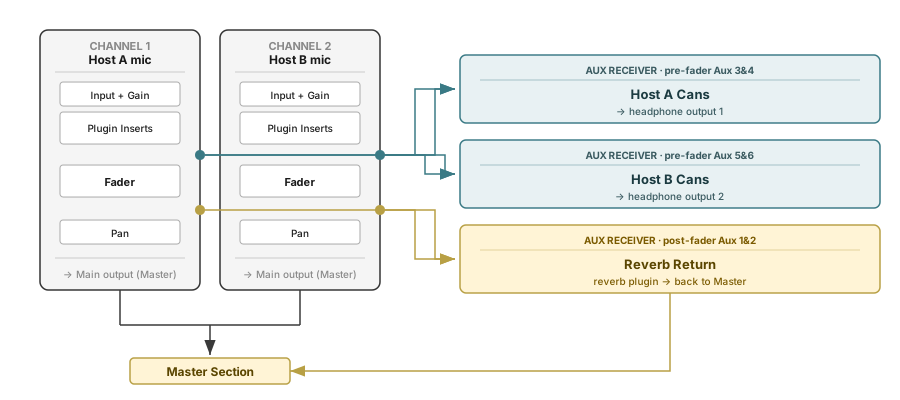
This is the routing skeleton for most live audio setups. More complex configurations are extensions of the same pattern.
Master Section
The Master Section is the final stop before audio leaves SoundDesk. It sums every channel and bus routed to it, applies up to 12 plugin inserts to the whole mix, and sends the result to the assigned output. Typical master inserts: a bus compressor (level glue), an EQ (overall tonal shaping), a limiter (catch peaks before the audio leaves).
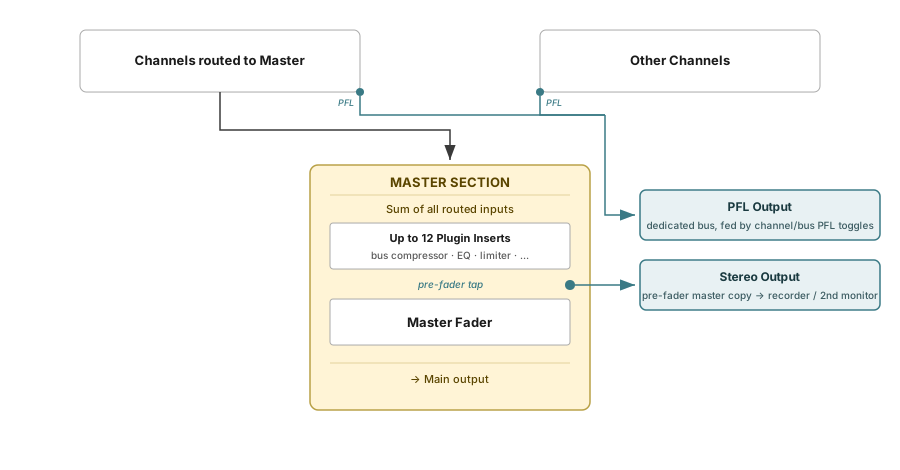
Two additional outputs sit alongside the master:
PFL (pre-fade listen) — solo-check a channel through headphones without affecting the main mix; useful for cueing up a track before it enters the mix.
Stereo Output — a pre-fader copy of the master signal sent to a dedicated output. Useful for feeding a recorder or a monitor path that should not follow the master fader.
See Master Section for the complete reference.
Putting it Together
Four questions resolve almost any routing scenario when building a new desk:
- What is coming in? List the sources: microphones, instruments, applications, interfaces. Each becomes a channel.
- What needs to be grouped? Channels that should share a fader or a plugin go into an I/O bus.
- What needs its own copy of the audio? Headphone mixes, effects sends, and recording stems are typical aux send uses.
- Where is the final mix going? Speakers, a streaming app, a recorder, or all three. Set up the Master output and any channel/bus outputs accordingly.
Physical and Virtual Devices
This section is about how SoundDesk uses the physical and virtual audio devices on your Mac.
By default, SoundDesk (like any Core Audio application) uses one input and one output device at a time; the special All-in-One Device merges multiple physical interfaces and virtual sources into a single logical device, so a USB microphone, an audio interface, and the system audio of Spotify or Chrome can appear as one unified source.
If you have a single audio interface and no need to pull audio in from other sources, you can skip the All-in-One Device entirely and point SoundDesk at the interface directly. See Latency and CPU Considerations below for why this can be preferable.
See Audio Setup: I/O for the full audio interface setup reference.
All-in-One Latency and CPU Considerations
The All-in-One Device is an Aggregate Device, which adds overhead that a single physical interface does not. The cost is usually acceptable, but it is worth understanding before relying on the All-in-One Device for latency-critical work.
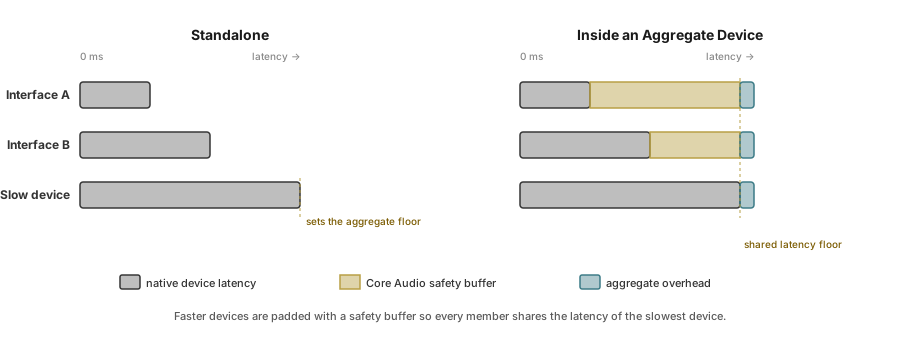
Latency alignment — the aggregate equalises every member's I/O latency to that of the slowest device by padding the faster ones with a safety buffer. The slowest device sets the floor; the aggregate adds a small overhead on top.
Sample rate conversion (SRC) — if devices or applications run at different sample rates, the All-in-One resamples the differing streams in real time. SRC adds both latency and CPU load; the cost scales with the number of streams converted.
Clock drift compensation — independent clocks drift relative to each other. One device acts as the clock master in the All-in-One Setup; the others receive real-time drift correction. Correction is normally inaudible but consumes CPU.
Per-application overhead — when applications are added as sources (macOS 14.5 and later), each one's audio is captured and resampled individually. CPU cost scales linearly with the number of application sources.
Recommendations:
- For latency-critical work (live performance, vocal or guitar monitoring through plugins), prefer a single physical interface rather than the All-in-One Device.
- Keep every contributing physical device at the same sample rate.
- Designate an audio interface with a high-quality internal clock as the Clock in the All-in-One Setup.
- If contributing devices support hardware word clock, connect them with a word clock cable from the designated master and disable software drift correction for those devices. Hardware sync avoids the CPU cost and potential artefacts of real-time drift correction.
- Keep the number of devices and application sources to the minimum needed for the task.
See Latency and ADC for the desk latency discussion, and I/O, Audio Setup for All-in-One configuration.
Glossary
Signal — any single stream of audio.
Channel — a signal's complete path through one desk strip: input, plugins, fader, pan, routing.
Fader — the vertical slider that sets a channel's level.
Gain — level adjustment applied to a signal, in dB.
Pan — places a mono signal in the stereo field, or sets the Left/Right balance of a stereo channel.
Aux send — a tap on a channel that sends a copy of the signal to a separate destination (typically an auxiliary receiver) independent of the main fader. Pre-fader for performer headphone mixes; post-fader for effects sends.
I/O bus — an internal numbered route between channels, used to group channels under a shared fader and plugin chain (sub-mixes, stems, side-chain sources).
Plugin — an audio processor (EQ, compressor, reverb, etc.) hosted on a channel. SoundDesk uses Audio Unit (AU) plugins.
Insert — a slot in the signal path where a plugin is placed; the signal passes through it.
Side-chain — a secondary input on a plugin that controls its behaviour from a different signal, while the plugin still processes its main input. Most common with compressors: for example, ducking a music bed using a voice channel as the side-chain trigger.
Mix — the combined output of multiple channels.
Mix-minus (clean feed) — a mix that excludes one or more channels from a returning feed, so a remote participant hears the programme without their own voice. Most common in broadcast: for example, auto-muting a remote caller's voice from their own return feed.
Routing — the choice of where a channel sends its signal.
Latency — the delay between audio entering the system and emerging on the other side.
PFL — pre-fade listen. Solo-check a channel without affecting the main mix.
Copyright © 2011 - 2026 LoudLAB. All rights reserved.
|
Products |
Downloads |
Support |
Follow Us |
Copyright © 2026 LoudLAB. All rights reserved. Terms & Conditions | Privacy Policy