Audio Setup
The Audio Setup window controls the global I/O interfaces and DSP settings. It also offers quick access to the system Audio MIDI Setup application and to the Virtual Driver Matrix.
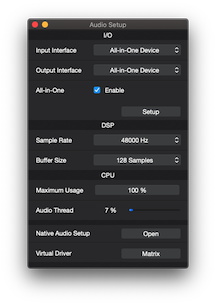
I/O
You use the I/O section to configure the global audio input and output interfaces (devices) that SoundDesk will use to receive/send audio.
Note: SoundDesk channel I/O setup depends on the selected audio interfaces, so changing the interface will necessarily change the I/O options. SoundDesk will try to recover the original configuration if you revert to the interface used during setup.
All-in-One Device
The All-in-One Device is an Aggregate Device, that merges all audio devices in one.
Since it keeps track of all connected audio devices, audio interrupts are expected when hot plugin/unplugging audio devices into the system. The best practice is to connect all needed audio devices before starting SoundDesk and only unplugging them after quit.
When this is not possible SoundDesk will try to keep the interrupt to a minimum and will try, as gracefully as possible, to adapt the input and output options to the new configuration.
For the latency and CPU trade-offs of aggregating multiple devices, see Core Concepts: All-in-One Latency and CPU Considerations.
AIO Setup
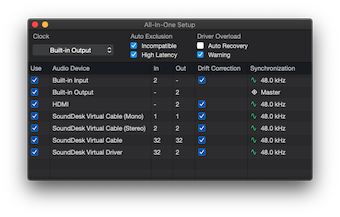
The All-in-One Setup window contains advanced controls for the AIO. You can use it to add/remove devices, set/unset auto exclusions, change the clock source, control device synchronization and drift correction.
Clock and Drift Correction
The clock option, sets the clock of a device as the master clock for the AIO. Consider using the device with the most reliable clock for the best performance.
If all audio devices have a word clock, please connect them using a word clock cable. Connect the cable from the device you designated as Clock Source to the input of all other devices and disable the Drift Correction option for those devices. If any of the devices don't work with the word clock, turn the Drift Correction on.
Auto Exclusions
As with other Aggregate Devices, all devices should operate at the same resolution (sample rate). Some devices may not be compatible with the current clock device, when the Incompatible option is on, those devices will automatically be excluded from the AIO and from the list of options (this is the default behaviour).
You can also auto-exclude devices that SoundDesk considers High Latency. This option will ban devices that have a perceptible amount of latency.
Synchronization
The AIO will try to keep all its devices synchronised, but this can fail for a myriad of reasons. In this event, you can use the Synchronization column to check and change the sample rate of a device. Please consider keeping all devices synchronised all the time.
Note: Users may prefer their own Aggregate Devices from the Audio and MIDI Setup application. Please consider disabling the AIO when using other Aggregate Devices.
Also See: Aggregate Devices and Aggregate Device Settings.
AIO System Audio Capture (macOS 14.5+)
Capture audio from any running macOS application directly into SoundDesk — useful for podcasting, streaming, screen recording, or routing music apps into a desk.
Requirements
macOS 14.5 or later, with authorisation enabled at System Settings > Privacy & Security > System Audio Recording.
Adding an application as a source
- Open the All-in-One Setup window.
- Add the application whose audio you want to capture.
- The app's audio appears as an input option on SoundDesk channels.
Routing captured audio
Set any channel's input to the application source. The channel now receives the app's audio output and can be processed, mixed, or recorded like any other source.
Use cases
• Capture a Zoom or Teams call onto its own channel.
• Pull in music from Spotify or a browser tab as a stereo source.
• Add game audio as a separate channel for game streaming.
• Record a video conference into a desk recording.
Caveat
System Audio Capture is part of the All-in-One Setup. If the AIO is disabled (for example, when prioritising low-latency live work with a single interface), application capture is not available — re-enable the AIO when you need it.
AIO Warnings/Errors
The Core Audio System Restarted!
This is a critical message and means that macOS Core Audio either crashed or was forced to quit. SoundDesk will try to recover from this and rebuild the AIO, but users should consider restarting macOS at an opportune moment.
Note: If this is caused by the user manually quitting/killing Core Audio, please consider restarting macOS instead, as a myriad of memory and synchronisation issues can be caused by it.
Something went wrong while maintaining the AIO. The AIO was disabled.
This is a critical message and happens when there is a panic in the AIO build/rebuild stage, usually caused by a driver issue with one of the devices or with Core Audio as a whole. The AIO will be disabled.
For most users, a macOS restart will fix this, but you may also need to check for driver updates. If the problem persists, please report the issue with the name and manufacturer of the device that is causing it.
The AIO Driver is Overloading too often!
If a considerable number of IO frames drops within a small time window this warning will pop up. This is a warning and can be disabled in the All-in-One Setup window. If Auto Recovery is on, SoundDesk will increase the buffer size to mitigate this.
Note: These are driver overloads; while reducing CPU usage in SoundDesk will help, if SoundDesk is reporting low CPU usage, overloads of this nature are most likely caused by too many devices in the AIO or by an out-of-sync device; other applications connected to devices used by the AIO, will affect performance too as they will consume IO-cycle time as well. Users may need to add/remove devices from the AIO and check usage by other apps to fine-tune the load for a particular system.
DSP
With the DSP section you can configure the global Sample Rate and Buffer Size settings. Users are responsible for keeping these options at a realistic value for their machines and use needs.
Note: If audio distortion or clicks are noticeable because of Audio Thread Overload, reducing Sample Rate or increasing the Buffer Size and/or the Maximum CPU will fix it. But if time accuracy (low latency) is important, using small Buffer Sizes (e.g. 64/128/256 samples) will keep latency to a minimum. If you need low latency and audio thread overloads are occurring, reduce the sample rate or the number of plugins to reduce CPU usage.
Audio Thread and CPU Usage
The CPU indicator in the Audio Setup is relative to the global Audio Thread (all desks), you can use it to evaluate the number of desks a machine can handle before audio degradation/overload.
A good rule of thumb is to keep it at or below 40~50% to give enough headroom for small processing peaks.
With the introduction of audio multithreading, desks have their own CPU Usage display, that can be opened from the View menu. These can be more useful to assert the CPU load and thread distribution for a particular desk setup.
Also see:Audio Multithreading.
For more on the Virtual Driver Matrix, please go to SoundDesk Virtual Devices.
Copyright © 2011 - 2026 LoudLAB. All rights reserved.
|
Products |
Downloads |
Support |
Follow Us |
Copyright © 2026 LoudLAB. All rights reserved. Terms & Conditions | Privacy Policy