Using SoundDesk as a macOS audio mixer and router

If you’re interested in capturing a limited number of applications using SoundDesk, you might find this helpful as well: Using SoundDesk to capture audio from other applications.
Please start by checking that you are using the latest SoundDesk Virtual Devices Add-On (you can get it from here), and check that you are using the latest SoundDesk app (you can get it here).
We need to start by making sure that SoundDesk is in the driver’s seat.
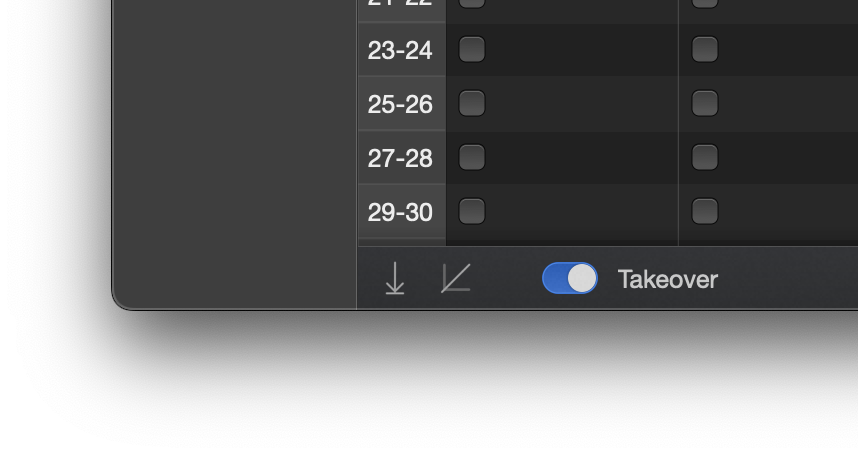
We do that by navigating to the Virtual Driver Setup in the Preferences window. At the bottom, there is a Takeover switch; make sure it’s active.
SoundDesk will retain the virtual driver as the default system output device. Upon quitting, it will revert to its original setting.
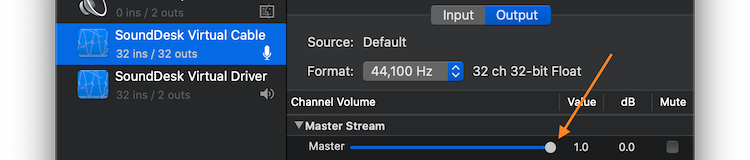
Then we check that we are not unintentionally double mixing, by opening the macOS Audio and MIDI Setup app (from SoundDesk > Preferences > Native Audio MIDI Setup) and setting all faders up on both inputs and outputs for all devices (including the SoundDesk ones).
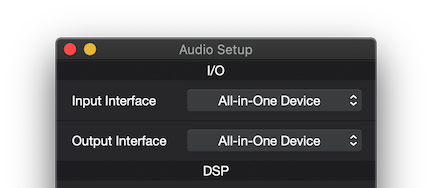
In SoundDesk, we set both the input and output interfaces to the All-in-One Device, this will allow you to route audio across all devices.
SoundDesk will now be our main input and output hub, so each input and output can be assigned to any real or virtual device installed.
To assign audio from an application to a channel strip, we need to open the Virtual Driver Matrix from the Audio Setup window.
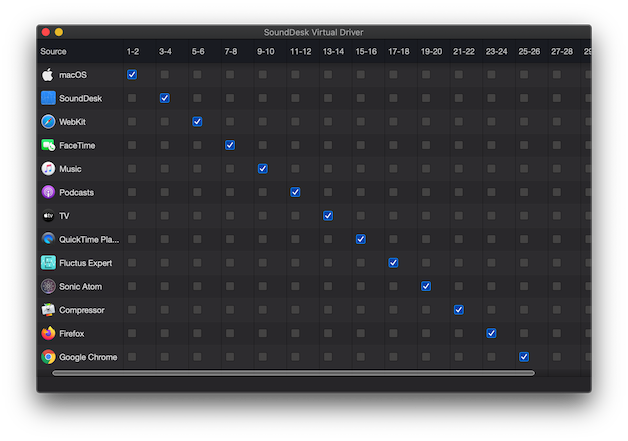
The matrix window will pop up with the applications that are connected to the Audio System. Most applications will appear in the matrix as we open them, but some (e.g. browsers) can only pop up when audio is played for the first time.
We use the matrix to route audio from applications to a set of input channels of the Virtual Driver. In other words, we connect the output of an application to the input of the Virtual Driver.
Now we just need to set the SoundDesk mixer inputs to the appropriate Virtual Driver channels and we are ready to start mixing.
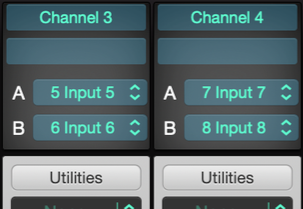
For example, in the setup above Safari is sending audio to Channel 3 (inputs 5 and 6) while FaceTime will be sending audio to Channel 4 (inputs 7 and 8) as per the previous matrix setup.
Have a Great Day!
LoudLAB
Please start by checking that you are using the latest SoundDesk Virtual Devices Add-On (you can get it from here), and check that you are using the latest SoundDesk app (you can get it here).
We need to start by making sure that SoundDesk is in the driver’s seat.
We do that by navigating to the Virtual Driver Setup in the Preferences window. At the bottom, there is a Takeover switch; make sure it’s active.
SoundDesk will retain the virtual driver as the default system output device. Upon quitting, it will revert to its original setting.
Then we check that we are not unintentionally double mixing, by opening the macOS Audio and MIDI Setup app (from SoundDesk > Preferences > Native Audio MIDI Setup) and setting all faders up on both inputs and outputs for all devices (including the SoundDesk ones).
In SoundDesk, we set both the input and output interfaces to the All-in-One Device, this will allow you to route audio across all devices.
SoundDesk will now be our main input and output hub, so each input and output can be assigned to any real or virtual device installed.
To assign audio from an application to a channel strip, we need to open the Virtual Driver Matrix from the Audio Setup window.
The matrix window will pop up with the applications that are connected to the Audio System. Most applications will appear in the matrix as we open them, but some (e.g. browsers) can only pop up when audio is played for the first time.
We use the matrix to route audio from applications to a set of input channels of the Virtual Driver. In other words, we connect the output of an application to the input of the Virtual Driver.
Now we just need to set the SoundDesk mixer inputs to the appropriate Virtual Driver channels and we are ready to start mixing.
For example, in the setup above Safari is sending audio to Channel 3 (inputs 5 and 6) while FaceTime will be sending audio to Channel 4 (inputs 7 and 8) as per the previous matrix setup.
Have a Great Day!
LoudLAB