LoudLAB 3 exporting using markers

LoudLAB 3 exporting using markers
LoudLAB 3 use a marker system to set the "start" and "stop" cues of the exporter.
We start by selecting the audio samples that we intend to export:
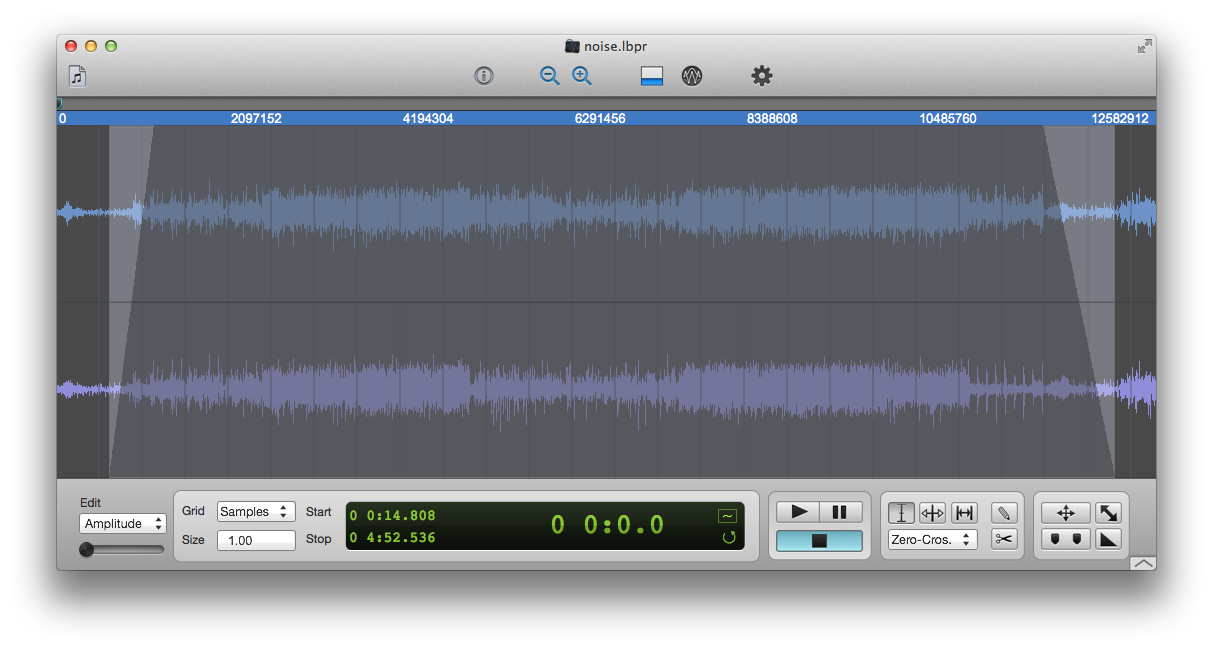
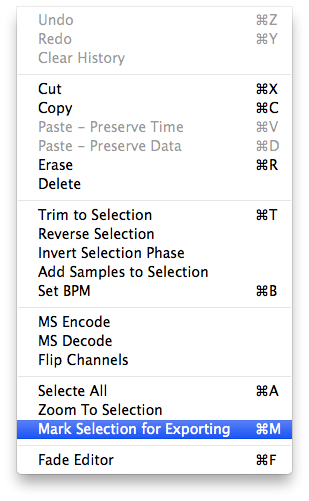
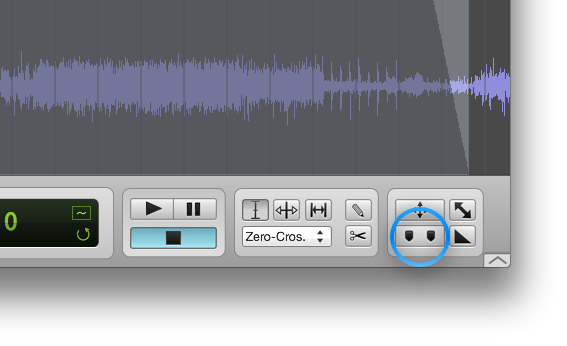
Then we can either use the Edit Menu or the Marker Button (Editor ToolBar), to mark the selection for exporting.
Edit Menu:
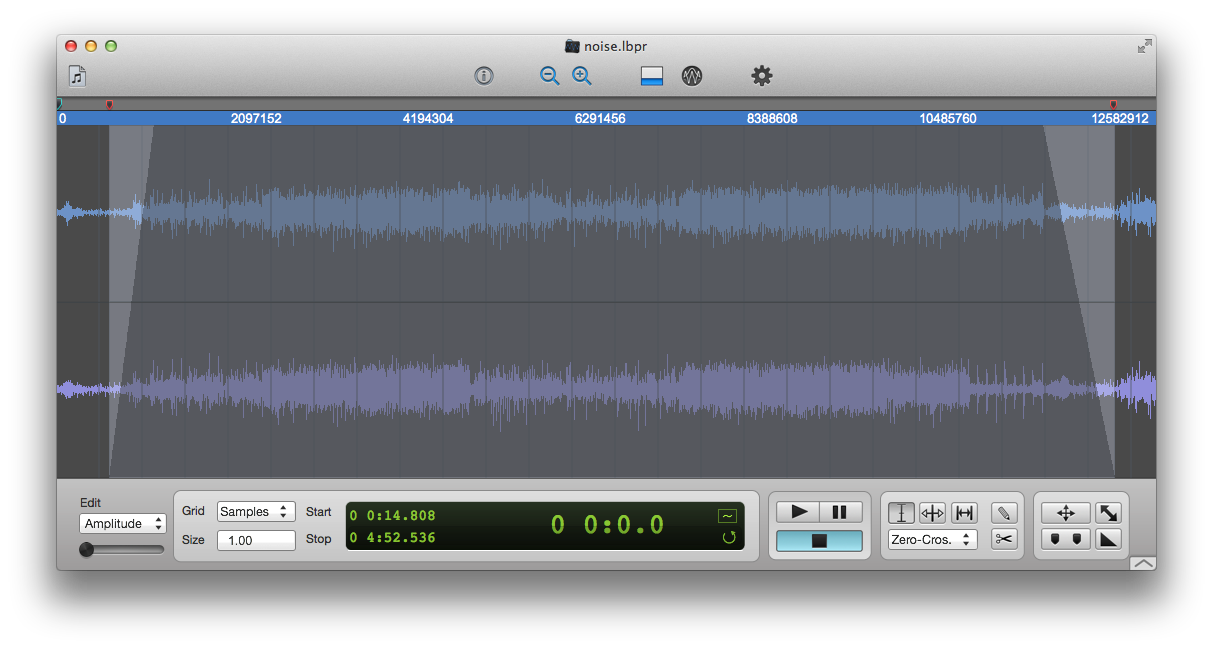
Once we marked the selection, two red markers will be placed on the selection to indicate the export boundaries.
Now, we just do the regular exporting steps, and voilà! LoudLAB will only export the marked section.
Have a Great Day!
This discussion has been closed.