Understanding and troubleshooting SoundDesk All-in-One Device

SoundDesk automatically creates and maintains an aggregate device (All-in-One device) that contains all devices present in the system.
This allows you to send/receive audio from/to all your devices simultaneously.
In the Audio Setup window (shift+cmd+A) you can disable/enable the All-in-One and access the advanced setup options.
Note: if we intend to use other Aggregate Devices created by the Audio MIDI Setup.app in SoundDesk, is advisable to disable the All-in-One to prevent conflicts.
All-in-One Advanced Setup
For the most part, the All-in-One Device follows the conventions of Aggregate Devices created with the Audio MIDI Setup application, with a couple of exceptions:
• Hot plugging/unplugging a device will create an audio interrupt to add/remove the device from the All-in-One automatically, except for auto-excluded devices (see Auto Exclusion bellow) or devices that have been manually excluded using the Use option.
• Only valid hardware and virtual devices can be used as a Clock/Master device.
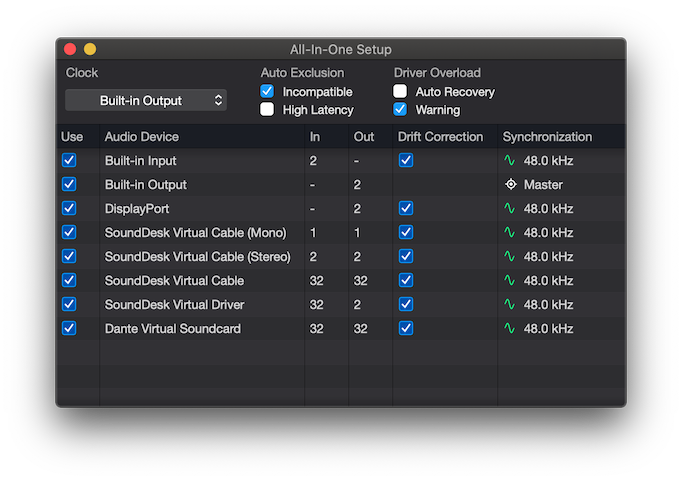
The smooth operation of the All-in-One device depends on all devices being correctly synchronised. SoundDesk will try to automatically synchronise all devices for you, but this can fail for a myriad of reasons.
If one or more devices go rogue, the Syntonization column will display a red flag indicating the responsible device. Syntonization failure will normally manifest itself with breaks in the audio stream that can cause audible pop-like sounds or distortion.
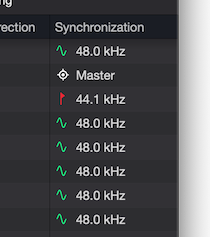
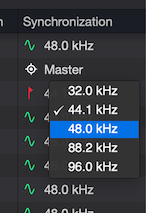
To fix it, we can manually change the sample rate for that device to the appropriate one, unless the device can not be synchronised (see Auto Exclusion below)
Auto Exclusion - Incompatible
Not all devices can be synchronised without using resampling. Unlike other Aggregate Devices, SoundDesk Auto Excludes by default, devices that can not be synchronised without penalty. This avoids conflicts and performance penalties introduced by real-time resampling.
We can change this behaviour by unchecking the Incompatible option in the Auto Exclusion section.
This option should be considered a last resource and avoided to prevent the penalties discussed above.
Note: When the Incompatible option is off, incompatible devices will always show a red flag.
Auto Exclusion - High Latency
By default, SoundDesk allows devices that have large latency requirements in the All-in-One. These devices (frequently Bluetooth, airplay and some virtual devices) will add to the overall latency of the All-in-One device, therefore for minimal latency, we should avoid them and enable the High Latency option in the Auto Exclusion section.
Sample Rate changes when using the All-in-One device
When changing the sample rate in the DSP section, one or more devices may refuse to update to the selected sample rate, in this case, SoundDesk will negotiate a sample rate value accepted by all devices, and update the DSP settings accordingly.
CPU usage and Driver overloads
The All-in-One device adds an extra layer of processing that takes time. The more devices you have the less time is available to process the actual mix. Finding a balance between the desk size, complexity and the number of devices that you can run simultaneously at a given sample rate and buffer size, can require some fine-tuning.
If you are experiencing audio overloads (audible audio breaks or distortion) you may need to consider downsizing by removing devices (including virtual devices) that you do not need from the All-in-One, reducing the desk complexity or closing other applications.
When using virtual devices to connect audio streams from/to SoundDesk and other applications, remember that those applications will also need some of the driver IO cycle time to retrieve/deliver their audio. If there is multiple application that can do the same task (e.g. browsers), it can be helpful to test them to find the one that uses the least time to deliver/receive audio. This can increase the time that SoundDesk has available to perform audio processing.
Have a Great Day!
LoudLAB