cDSP Linear-Phase Match EQ
The Match EQ with Linear-Phase response equalizes a signal based on the spectrum or frequency response of another. The Smoothing control trades off match precision against curve smoothness.
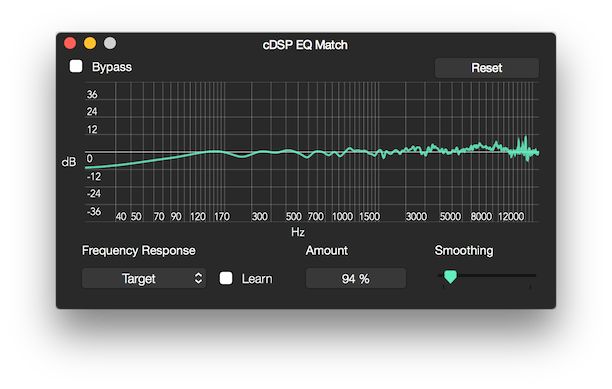
Parameters
Learn your Source and Target spectrums and apply Match EQ
The first step is to Learn the two spectrums - the signal you want to EQ and the signal that has the spectrum you want to match.
Note: you can import a file with the sole purpose of learning its spectrum, and later delete it.
To start you set the "Frequency Response" to Source and activate the Learn toggle, then you play back the file or section you want to EQ.
To stop learning, turn off the Learn toggle.
Now you set the "Frequency Response" to Target and repeat the procedure on the spectrum you want to match.
The Match EQ will not be active or display any curve until you capture the Source and Target spectrums.
Frequency Response
Sets the spectrum to learn/capture.
Learn
Sets if the learn/capture is active.
Amount
Sets the amount in the percentage of the match - 100% means the closest match possible.
Note: 100% match amount is not always the most effective value, so you normally start with 50% and work from there.
Also see GUI.Smoothing
Sets the curve (peaks and valleys) smoothing, full left means the closest match possible or no smoothing.
Note: just like the match amount, no smoothing is not always the most effective value; you normally want to smooth your peaks and valleys to some degree.
Also see GUI.Copyright © 2011 - 2026 LoudLAB. All rights reserved.
|
Products |
Downloads |
Support |
Follow Us |
Copyright © 2026 LoudLAB. All rights reserved. Terms & Conditions | Privacy Policy