Tool Bar
The Tool Bar exposes the editor tools, the input section, playhead/selection positions, transport, zoom, metronome, and grid controls.

Input Section
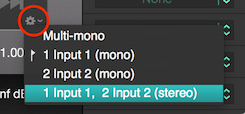
Determines which channels will be recorded and the region layout.
Displays a list of default Mono and Stereo configurations to record from, plus the Multi-mono option.
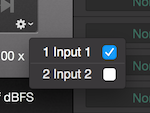
Multi-mono - You may record various inputs simultaneously by selecting the Multi-mono mode and ticking the desired channels. Each channel will be recorded to a mono region.
Selection Start & End Position

Displays the Start and End positions of the selected section.
Playhead Position
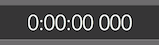
Displays the Playhead position (current playback time).
Project Preferences

Opens the Project Preferences window.
Metronome State

Toggles the metronome on/off state.
Also see Tempo, Beats Per Bar, Grid Offset and Metronome.
Loop State

Toggles the loop state on/off. The loop Start and End points are equal to the Selection.
Waveform Zoom

Sets the global Region Waveform Zoom.
Default Tool

When active, the "Default Tool" allows free selection and Region dragging.
Keyboard Special Behaviour
Press "Shift"(⇧) to drag the selection boundaries or to add Regions to the selection.
The "Option Key"(Alt) shifts to the "Selection Tool" ⇒ left/right to move or up/down to resize.
The "Command"(⌘) shifts to the "Navigation Tool" ⇒ drag within the Editor View, left/right to move or up/down to zoom in/out.
Selection Tool

When active, the "Selection Tool" moves/resizes the current selection ⇒ left/right to move or up/down to resize.
Also see "Navigation Keys" in Keyboard & Shortcuts.
Keyboard Special Behaviour
Press "Shift"(⇧) to drag the selection boundaries.
The "Option Key"(Alt) locks the resizing function ⇒ move without affecting the selection size.
The "Command"(⌘) shifts to the "Navigation Tool" ⇒ drag within the Editor View, left/right to move or up/down to zoom in/out.
Navigation Tool

When active, the "Navigation Tool" allows you to move/zoom the Editor View ⇒ drag the waveform left/right to move or up/down to zoom in/out.
Also see "Navigation Keys" in Keyboard & Shortcuts.
Keyboard Special Behaviour
Press "Shift"(⇧) to lock the zoom function ⇒ move without affecting the view size.
The "Option Key"(Alt) shifts to the "Selection Tool" ⇒ left/right to move or up/down to resize.
Draw Tool

When active, the "Draw Tool" allows Region and Automation drawing.
Keyboard Special Behaviour
The "Option Key"(Alt) shifts to the "Selection Tool" ⇒ left/right to move or up/down to resize.
The "Command"(⌘) shifts to the "Navigation Tool" ⇒ drag within the Editor View, left/right to move or up/down to zoom in/out.
Split Tool

When active, the "Split Tool" allows Region splitting.
Keyboard Special Behaviour
The "Option Key"(Alt) shifts to the "Selection Tool" ⇒ left/right to move or up/down to resize.
The "Command"(⌘) shifts to the "Navigation Tool" ⇒ drag within the Editor View, left/right to move or up/down to zoom in/out.
Snap to...
The "Snap to" menu controls the Default snap behaviour ⇒ Snap to None, Grid, Zero Crossing Points or to Regions.
Options

None ⇒ No snap.

Grid ⇒ Determined by the Grid Unit and Size.

Zero Crossing ⇒ If within a waveform snaps to the nearest zero crossing point.

Region ⇒ If within a Region/s snaps to the nearest Region boundary.
Playback Speed

Sets the playback speed.
Note: This will not apply at export.
Next Steps
- Edit regions with the tools. Regions shows how the Selection, Draw, and Split tools operate on audio regions.
- Switch tools by keyboard. Tool keys lists the shortcut bindings.
- Configure the grid. Grid Unit and Size set what Snap snaps to.
- Configure recording inputs. Audio Preferences: Input Interface picks the device used by the toolbar's input controls.
Copyright © 2011 - 2026 LoudLAB. All rights reserved.
|
Products |
Downloads |
Support |
Follow Us |
Copyright © 2026 LoudLAB. All rights reserved. Terms & Conditions | Privacy Policy