Audio Regions
Audio regions are the editable building blocks of a Fluctus project. Each region has rearrange, resize, fade, lock, mute, and other per-region controls.
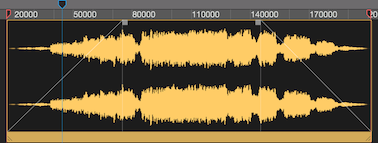
Rearrange Regions
An unlocked region can be freely moved within the workspace (also see Snap to).
When two regions overlap, the Bring to Front or Send to Back functions can be used to see the region of interest.
These options are also available from the region contextual menu and from the Region Finder.
Region Resizing

When unlocked, region bounds can be changed by dragging and dropping the lower corners to a new place (also see Snap to).
You can also trim the region with the Trim to Selection action.
Region Fades

All audio regions have a configurable fade-in and fade-out function.
Drag and drop the squares on the top corners to set the fade size (also see Snap to).
Furthermore, four types of fade can be set from the region-fade contextual menu or from the Region Inspector.
Fade Types:
Linear, S-Curve, Concave-Curve and Convex-Curve.
Region State

Locked, muted, and phase-reversed regions display a small status icon, making the state visible at a glance.
This is especially useful when several regions share the same workspace.
Region Split

Regions can be split with the Split Tool or with the Split at Selection action.
Advanced Split
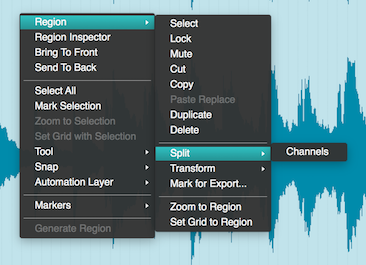
When you right-click a Region, you will be presented with extra Split functions.
Note: the options available are determined by the Region type.
Region Transform
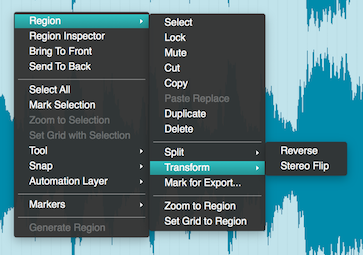
When you right-click a Region, you will be presented with in-place transform options.
Note: the options available are determined by the Region type.
Region Inspector
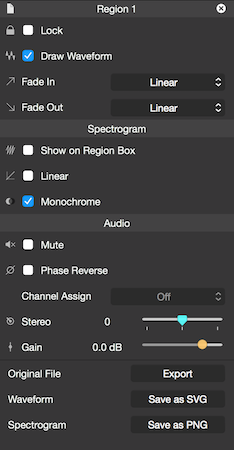
Lock
Ticking this box will lock the region in place, preventing unwanted changes.
Draw Waveform
Unticking this box will hide the region Waveform, therefore reducing CPU usage.
Fade-in and Fade-out
Refer to Region Fades.
Spectrogram (Fluctus Expert Only)
Depending on the version being used, you will find a Spectrogram section.
Ticking the "Show on Region Box", will replace the Waveform with a Spectrogram.
The Spectrogram can also be configured with a linear/logarithmic scale and mono/polychromatic colouring.
Audio
The Audio section gives access to basic audio mixing utilities.
Regions can be individually muted, phase reversed, panned and gain shifted.
For mono regions, the Channel Assign option will be active, and you can assign the playback to one of the available channels.
When the Channel Assign option is different than Off, the Stereo Pan will be disabled.
Next Steps
- Use the Split tool. Tool Bar: Split covers the cursor-based split workflow.
- Process regions with plugins. Plug Chain applies AU inserts to the project output.
- Mark sections for export. Editor View: Markers lets you tag the regions you want to export later.
Copyright © 2011 - 2026 LoudLAB. All rights reserved.
|
Products |
Downloads |
Support |
Follow Us |
Copyright © 2026 LoudLAB. All rights reserved. Terms & Conditions | Privacy Policy